
By using this site, you agree to the Privacy Policy and Terms of Use.
Accept
PS5 Home - The Home of PS5PS5 Home - The Home of PS5
  • Editorials
    EditorialsShow More
    What’s Coming for PlayStation in 2026: New Games, PS5 Pro Updates, and PS6 Rumours
    5 Min Read
    The Convergence of PS5 Gaming and Casino Experiences
    5 Min Read
    How Modern Games Use Reward Systems to Keep PS5 Players Engaged
    8 Min Read
    PS5 vs. PC: Choosing Your Battleground in 2026
    8 Min Read
    astro bot key art
    The Best Family Games for the PS5
    5 Min Read
  • Games
    GamesShow More
    What’s Coming for PlayStation in 2026: New Games, PS5 Pro Updates, and PS6 Rumours
    5 Min Read
    How Modern Games Use Reward Systems to Keep PS5 Players Engaged
    8 Min Read
    astro bot key art
    The Best Family Games for the PS5
    5 Min Read
    Call of Duty - Black Ops 7
    How Call of Duty Uses PS5 Hardware to Change the Playing Experience
    5 Min Read
    Fighting an Arc in Arc Raiders
    Best Arc Raiders Settings for the PS5
    2 Min Read
  • News
    NewsShow More
    PS Plus extra and premium august 2024 promo image
    PlayStation Plus August 2024 Free Games Revealed
    10 Min Read
    Guitar Hero 3 cover art with PlayStation logo
    Is Guitar Hero Coming to PS5?
    3 Min Read
    Palworld monster with giant gun
    Will Palworld Come to PS5?
    3 Min Read
    Is Starfield on PS5?
    2 Min Read
    PS6 Release Date – News, Price, Release Date, Specs, and Rumours
    9 Min Read
  • How To Guides
    How To GuidesShow More
    PS5 Performance Tuning Guide — SSD Upgrades, VRR, Frame-Rate Tips & More
    8 Min Read
    How to Optimise Storage Without Losing Games
    9 Min Read
    Fighting an Arc in Arc Raiders
    Best Arc Raiders Settings for the PS5
    2 Min Read
    Call of Duty Warzone key art
    Best Call of Duty: Warzone Settings for the PS5
    3 Min Read
    how to recalibrate ps5 controller
    How to Recalibrate a PS5 Controller
    2 Min Read
  • Console
    ConsoleShow More
    PS5 Performance Tuning Guide — SSD Upgrades, VRR, Frame-Rate Tips & More
    8 Min Read
    What’s Coming for PlayStation in 2026: New Games, PS5 Pro Updates, and PS6 Rumours
    5 Min Read
    The Convergence of PS5 Gaming and Casino Experiences
    5 Min Read
    PS5 vs. PC: Choosing Your Battleground in 2026
    8 Min Read
    How to Optimise Storage Without Losing Games
    9 Min Read
  • Accessories
    AccessoriesShow More
    how to recalibrate ps5 controller
    How to Recalibrate a PS5 Controller
    2 Min Read
    Strike Pack PS5
    Strike Pack PS5 Guide
    2 Min Read
    How to Check the PS5 Controller Battery % on PC
    2 Min Read
    Astro Bot DualSense
    How Long Does a PS5 Controller Take to Charge?
    3 Min Read
    BT-W6 feature with a ps5
    How Do I Install the Creative BT-W6 on PS5?
    4 Min Read
Reading: How to Fix PS4 Error CE-30005-8
Share
Sign In
Aa
PS5 Home - The Home of PS5PS5 Home - The Home of PS5
Aa
  • Editorials
  • Games
  • News
  • How To Guides
  • Console
  • Accessories
  • Editorials
  • Games
  • News
  • How To Guides
  • Console
  • Accessories
Have an existing account? Sign In
Follow US
PS5 Home - The Home of PS5 > Console > How to Fix PS4 Error CE-30005-8
ConsoleHow To Guides

How to Fix PS4 Error CE-30005-8

Chris Melnyk
Last updated: 2025/08/18 at 9:27 PM
Chris Melnyk Published August 12, 2025
Share
ps4 error ce-30005-8 artwork for featured
SHARE

Like any modern console, the PS4 has various error codes, such as CE-30005-8. Others, like the E2-8211206A, can prevent you from creating a primary account. Unfortunately, error codes can pop up at random times with the PS4, and knowing how to deal with them can make things much easier. When it comes to CE-30005-8, it is the console telling you that it has trouble reading data. Whether from the disc drive or the hard drive itself. Which, in this case, is the HDD. So you may be asking yourself, well, how can it be fixed?

How to Fix PS4 Error CE-30005-8

There are various methods that can help with the error code CE-30005-8 for the PS4. Additionally, these fixes can also apply to the PS4 Pro if need be. They include the following:

  • Power cycle the PS4.
  • Game deletion/reinstallation.
  • Disc cleaning.
  • Rebuild the database.
  • Check external HDD (if applicable).
  • Contact PlayStation Support.

Power Cycle the PS4

A power cycle of the PS4 can be done by:

  1. Turning off the PS4/PS4 Pro console.
  2. Unplugging it from the wall outlet.
  3. Wait 5 minutes and then plug it back in and turn it on.

Game & Save Data Deletion/Reinstallation

Sometimes the error code can stem from a corrupted game or save data issue. In this case, the following process may aim to stop the CE-30005-8 code:

  1. Hover over the game that you are having trouble with and hit the “Options” button.
  2. Select the “Delete Game” tab, and the title will be removed.
  3. Next, go to “Settings” and then to Application Saved Data Management.
  4. From here, navigate to “Saved Data in System Storage.”
  5. Select the game save data for the title that wasn’t working.
  6. Reinstall the game and start a new save.
See also:  How to Redeem Fortnite Gift Cards on PS5

The reason behind starting a new save is that the old file is corrupted and can only cause further issues. While you can try to find an older save file, it’s best to use a fresh one to stave off any possible corruption.

Disc Cleaning

Sometimes, if the disc can’t be read, a simple case of cleaning it is a way to stop the error code. The best way to do so is by using a microfiber cloth to clean any smudges or dust from it.

Rebuild the PS4 Database

Rebuilding the database on your PS4 is another method that alleviates many error code concerns. It can even help with CE-30005-8 by doing the steps below:

  1. Power off your PS4 console.
  2. Hold the power button on the console until you hear two beeps.
  3. Connect your Dualshock 4 via USB Cable and turn it on with the PS button.
  4. The Safe Mode menu will appear with various options.
  5. Scroll down and select “Rebuild Database.”
  6. The system will complete this and restart automatically.
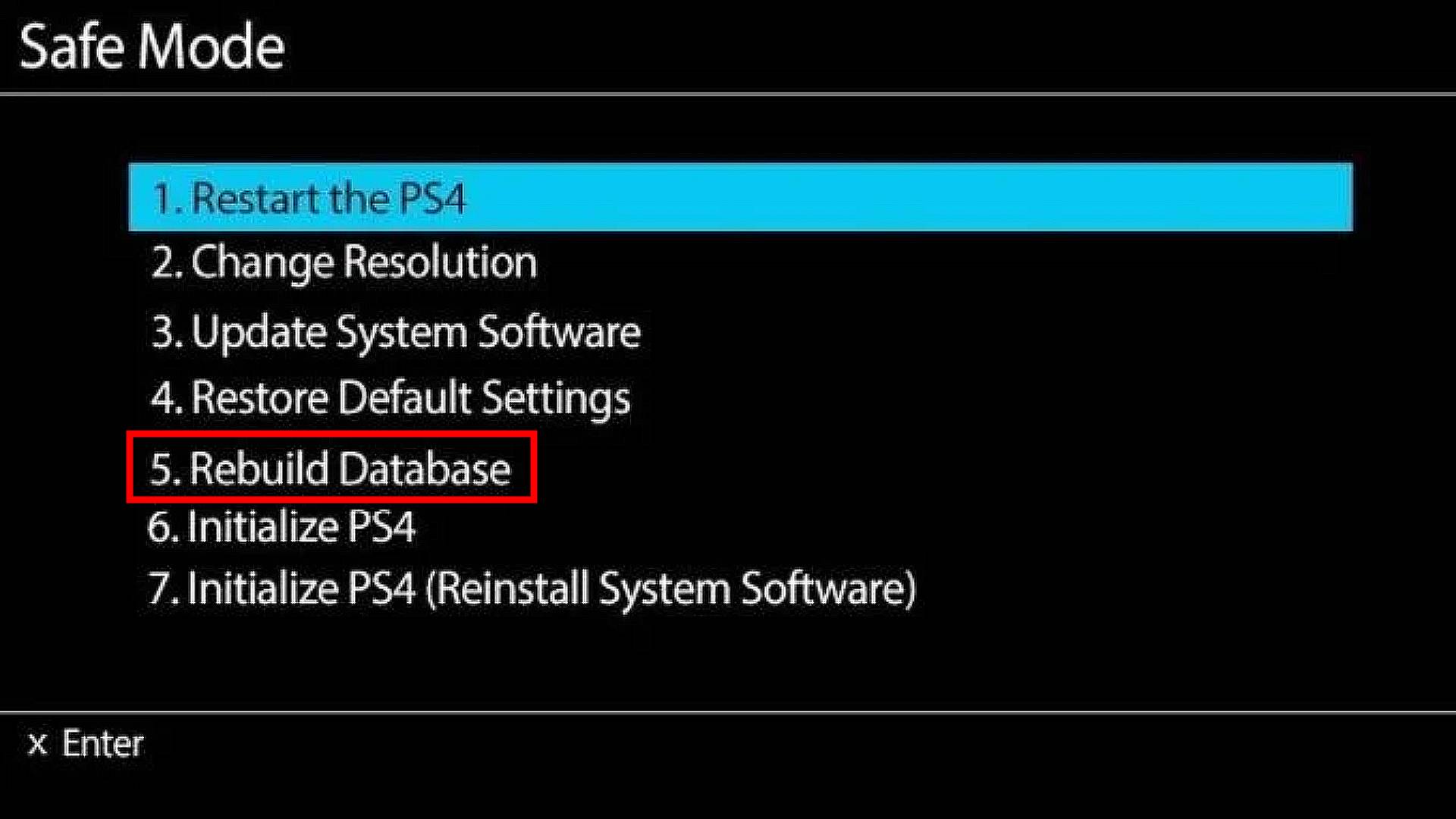
ps4 safe mode ce-30005-8

Checking the External HDD

If you have an external HDD connected to the PS4, this can also be a catalyst. So if you are getting the error code, try disconnecting the external drive. If the error goes away, plug it back in. If it starts up again, there could be an issue with the hard drive itself. In this case, formatting it may cause it to fix. It essentially resets the hard drive and wipes it. However, if the problem still persists, then the error is with the external itself and a new one may be needed.

See also:  How To Fix a PS5 That Keeps Turning Off

Contact PlayStation Support

As a last resort, if none of the above works, contacting PlayStation Support is the way to go. They will be able to diagnose any issues, and as a final scenario, you can send your console in to be repaired. It is best to leave this to last and try any of the methods above. If you are out of warranty on your PS4 console, you will be charged for any repairs that the console is sent out for. The link to the official PlayStation Support website can be found here.

Hopefully, we are able to help you resolve the PS4 error known as CE-30005-8. Many types of errors can occur on the different consoles. such as the WC-36547-5 code, and we aim to help you with those as well.

TAGGED: CE-30005-8, error code, PlayStation 4, PS4 error code
Chris Melnyk August 12, 2025
Share this Article
Facebook Twitter Whatsapp Whatsapp Reddit Email Copy Link Print
Previous Article VPN Lobbies on PS5 Explained (Call of Duty) VPN Lobbies on PS5 Explained (Call of Duty)
Next Article witcher 3 official screenshot Top 10 Best Cheap PS4 and PS5 Games

Recent Posts

  • PS5 Performance Tuning Guide — SSD Upgrades, VRR, Frame-Rate Tips & More
    January 15, 2026
  • What’s Coming for PlayStation in 2026: New Games, PS5 Pro Updates, and PS6 Rumours
    January 13, 2026
  • The Convergence of PS5 Gaming and Casino Experiences
    January 13, 2026
  • How Modern Games Use Reward Systems to Keep PS5 Players Engaged
    January 12, 2026
  • PS5 vs. PC: Choosing Your Battleground in 2026
    January 12, 2026
  • astro bot key artThe Best Family Games for the PS5
    January 11, 2026
  • How to Optimise Storage Without Losing Games
    January 8, 2026
  • Call of Duty - Black Ops 7How Call of Duty Uses PS5 Hardware to Change the Playing Experience
    January 6, 2026

You Might Also Like

ConsoleHow To Guides

PS5 Performance Tuning Guide — SSD Upgrades, VRR, Frame-Rate Tips & More

8 Min Read
ConsoleEditorialsGames

What’s Coming for PlayStation in 2026: New Games, PS5 Pro Updates, and PS6 Rumours

5 Min Read
ConsoleEditorials

The Convergence of PS5 Gaming and Casino Experiences

5 Min Read
ConsoleEditorials

PS5 vs. PC: Choosing Your Battleground in 2026

8 Min Read
Follow US

© 2013 - 2024 PS5Home.com. All Rights Reserved.

Our Friends: iNet Ventures / PS4 Home / Gamerbolt.com

  • Home
  • Contact and Advertising

Removed from reading list

Undo
Welcome Back!

Sign in to your account

Lost your password?
