


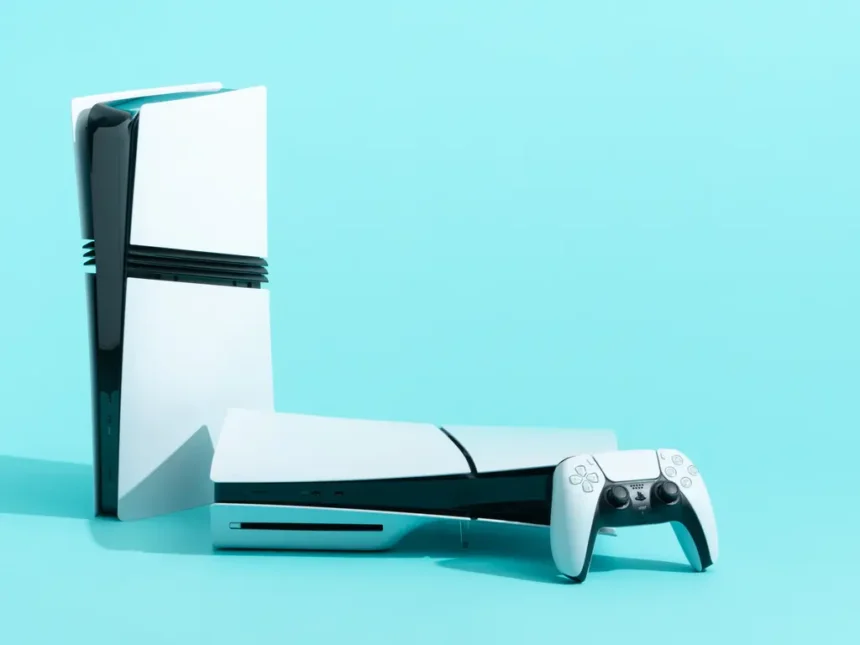
So, there are a few methods of transferring your game captures between PlayStation 5 consoles. Three, to be exact. We’ll go through them all on the PS5Home website. Thank you all for reading.
How To Prepare For Transferring Game Captures Between PS5s
But first, to prepare for this transfer, you’ll want to get a USB 3.0 or higher drive formatted as exFAT or FAT 32. Of course, you’ll need a PS5 console, know where the USB drive is on it, and know where the Media Gallery is in the system settings. You can easily find it in the system settings by navigating to the home screen, navigating to the right, and hitting the X button on the Media Gallery tab. Alternatively, you can get there more quickly by pressing the Share button on your DualSense controller, selecting a recent capture, and clicking Go To Media Gallery. Just to be clear, this is where all your screenshots and videos are stored. That is why we referred to them as captures. It allows you to view, edit, or delete your captures, and transfer them to a USB drive or your PlayStation App.
How To Transfer Game Captures Between PS5s
To do this, insert a formatted exFAT USB drive into your console, open the Media Gallery, select the captures you want to transfer, press the Options button, and choose Copy to USB Drive. Presto! And then, all you have to do after that is open the Media Gallery app to see them. But for those other two methods, stay tuned.
How To Via Captures Via PS App Or Transfer Via Full Data Transfer
So, to do it via the PlayStation App, make sure auto-upload is enabled on your PS5. This will ensure they are available in the app for up to 14 days. After that, they will be deleted from your phone’s app to free up space on Sony’s servers. Having them on your phone will allow you to remember all those sick Call of Duty clips.
But to go all hog wild and do the full data transfer, you’re going to want to connect two PS5 consoles to the same Wi-Fi network. Then, go to Settings > System > Transfer > Data Transfer to migrate all your data at once. Keep in mind, though, that doing this will transfer ALL your data, literally, so be sure to delete anything too large. It’s definitely the slowest and most time-consuming method of moving your captures over, but we hope it helped.


